2/15/2010

Networking Ubuntu 9.10 and Windows XP

This article explains how to share files and folders between your Ubuntu 9.10 computer and your Windows XP computer through your wired, ethernet home network. For background information and additional details, see Mount samba shares with utf8 encoding using cifs. Though this background information focuses on servers, it also applies to workstation computers. Therefore, procedures and examples in the article below focus on networking Ubuntu 9.10 and Windows XP computers.

To network Ubuntu 9.10 with Windows XP, you need to perform two procedures:
  1. On your XP computer, use the Set Up Sharing on Windows XP procedure below to share your XP Shared Documents folder with all network users.
  2. On your Ubuntu computer, use the Set Up Sharing on Ubuntu procedure below to create a share point, which is a desktop icon through which you have read and write access to the Shared Documents folder on your XP computer.
Set Up Sharing on Windows XP
To set up Windows XP to share documents with Ubuntu through your wired, ethernet home network, do the following:
  1. On your Windows XP computer, click My Computer to display its window.
  2. Right-click Shared Documents, click Properties to display its window, and then click Sharing to display its page.
  3. In the "Network sharing and security" frame:
    1. Select Share this folder on the network.
    2. Write down the Share name, which is "SharedDocs" in this example. You will need the Share name when you perform the Set Up Sharing on Ubuntu procedure below.
    3. Select Allow network users to change my files.
  4. Click Apply to set folder permissions, and then click OK to close the window.
  5. Click Start, click Settings, and then click Control Panel to display it.
  6. Double-click System to display its window, and then click Computer Name to display its page.
  7. Write down the contents of the Full-computer-name field, which is "alpha" in this example. You will need the Full computer name when you perform the Set Up Sharing on Ubuntu procedure below.
Set Up Sharing on Ubuntu
To set up Ubuntu to share documents with Windows XP through your home network, do the following:
  1. On your Ubuntu computer, click Applications, select Accessories, click Terminal to display its window, and then do the following:
    1. Type sudo aptitude install smbfs, press Enter, type your password, press Enter again, follow the prompts, and then to install the smbfs packages, which you need for sharing files on the network.
    2. Type sudo mkdir /media/ubuntusharename, and then press Enter to name the share icon that will be on the Ubuntu desktop. Use a meaningful name for the ubuntusharename. This example uses "betashare" because the Ubuntu computer name is beta.
    3. Type sudo nano /etc/nsswitch.conf, and then press Enter to display the nsswitch configuration file through the nano editor.
    4. On the Hosts line, use the arrow keys to move your cursor to the "d" in dns on the hosts line, type wins and a space immediately before dns so that the hosts line is
      hosts: files mdns4_minimal [NOTFOUND=return] wins dns mdns4.
    5. Press Ctrl+X, type y, and then press Enter to save your edits and close the nano editor.
    6. Type sudo aptitude install winbind, and then press Enter to install windbind.
  2. Close the terminal window, and then turn off your Ubuntu computer completely.
  3. Turn your Ubuntu computer back on, click Applications, select Accessories, click Terminal to display its window, and then do the following:
    1. Type sudo cp /etc/fstab /etc/fstab_old, and then press Enter to back up your fstab file. Do not skip this step because fstab is an important system file. In case you need to recover fstab, use the following command: sudo mv /etc/fstab_old /etc/fstab.
    2. Type sudo nano /root/.smbcredentials, and then press Enter to display your credentials file, which might be empty.
    3. Add two lines to your credentials file:
      username=winusername
      password=winpassword
      Replace winusername with your user name on your Windows XP computer. Replace winpassword with your Windows XP password.
    4. Press Ctrl+X, type y, and then press Enter to save your edits and close the nano editor.
    5. Type sudo chmod 700 /root/.smbcredentials, and then press Enter so that only root can access your credentials file.
    6. Type sudo nano /etc/fstab, and then press Enter to display your fstab file. At the bottom of the file, add the following line:
      //wincomputername/winsharename /media/ubuntusharename cifs guest,rw,iocharset=utf8,file_mode=0777 0 0
      Replace wincomputername with your Windows XP Full computer name, which is "alpha" in the Set Up Sharing on Windows XP procedure above. Replace winsharename with your Windows XP Share name, which is "SharedDocs" in the Set Up Sharing on Windows XP procedure above. Replace ubuntusharename with your Ubuntu share name, which is "betashare" in this example. Therefore, this line on the example Ubuntu computer is:
      //alpha/SharedDocs /media/betashare cifs guest,rw,iocharset=utf8,file_mode=0777 0 0
    7. Press Ctrl+X, type y, and then press Enter to save your edits and close the nano editor.
    8. Type sudo mount -a, and then press Enter to display your Ubuntu-share icon on your Ubuntu desktop.
  4. Close the terminal window, and then double-click your Ubuntu-share icon to open it. It should contain the same folders and files as the Shared Documents folder on your Windows XP computer.

1/23/2010

How to install Wine on Ubuntu

Wine is free software that lets you run Microsoft Windows applications under a Linux operating system, such as Ubuntu. Windows and its applications are very expensive. When you upgrade to a new Windows operating system, you often need to also buy new Windows applications. In contrast, Both Ubuntu and Wine are free, and Wine can help you save money by letting you run many of your existing Windows applications under Ubuntu for as long as you wish. For more information, see Wine (software) - Wikipedia and WineHQ - About Wine.


To install Wine on Ubuntu, do the following:
  1. Select System > Administration > Synaptic Package Manager to display its window.
  2. In the "Quick search" field, type wine, and then click Search to display packages that include "wine" in their titles.
  3. Select wine, click on Mark for installation to display the "Mark additional required changes?" window, and then click Mark to close that window and mark "wine" in the Synaptic Package Manager window.
  4. Click Apply to display the "Apply the following changes?" window, and then click Apply to download and install the Wine packages.
  5. On the "Changes applied" window, click Close to close that window.
  6. Close the Synaptic Package Manager.
 To test your Wine installation, do the following:
  1. Select Applications > Wine > Programs > Accessories > Notepad to start a clone of Windows Notepad and open its window.
  2. Type test, click File to display its menu, and then click Save to display its window.
  3. In the "File name" field, type test.txt, and then click Save to store then file in your home folder.
  4. Close the Notepad window.
  5. Select Places > Home Folder to display its "(your name) - File Browser" window.
  6. Right-click test.txt to display it menu, and then click Open with Other Application to display its window.
  7. Scroll down to and select Wine Windows Program Loader, and then click Open to display the "test.txt - Notepad" window.

How to install VitrualBox Ubuntu guest additions

This article defines VirtualBox Ubuntu guest additions, explains how to install them, and (if necessary) how to calibrate the Ubuntu video display.

What are VirtualBox Ubuntu Guest Additions?
VirtualBox Ubuntu guest additions are optional, supplemental software packages available through VirtualBox. You can install these guest additions after using VirtualBox to install Ubuntu as a guest operating system on a Windows XP host. Ubuntu guest additions enhance Ubunutu and make it easier to use. For example, after you install the Ubuntu guest additions, you can:
  • Move the mouse pointer between Windows XP and Ubuntu without first pressing a key to switch between the operating systems.
  • More easily change the Ubuntu screen size.
Installing Ubuntu Guest Additions
To install Ubuntu guest additions, do the following:
  1. Install your Ubuntu guest operating system, boot it, and install all its recommended updates according to the procedure in How to Install Virtual Ubuntu on XP.
  2. Press the right Ctrl key to switch the mouse and keyboard to your XP host, click on Devices to display its menu, and then click on Install Guest Additions to place the VBOXADDITIONS_3 icon on your Ubuntu desktop and display its window.Press the right Ctrl key to switch the mouse and keyboard to your Ubuntu guest, and then click OK to close the "VBOXADDITIONS_3" window.
  3. Double-click on VBOXADDITIONS_3 icon to display the "File Browser" window, and then copy VBoxLinuxAdditions-x86.run to your home folder.
  4. Click on Applications to display its menu, click on Accessories to display its menu, click on Terminal to open its window, and then type (after the "$" prompt) sudo chmod +x VBoxLinuxAdditions-x86.run, press Enter to display a password prompt, and then press Enter to display the "$" prompt.
  5. Type sudo apt-get install dkms.gcc, press Enter to display "Do you want to continue [Y/n]?" Press Y, and then press Enter to update kernel packages through DKMS (Dynamic Kernel Module Support) and display the "$" prompt.
  6. Type sudo apt-get install linux-hearders-$(uname -r), press Enter to install Linux headers and display the "$" prompt, type sudo ./VBoxLinusAddtions-x86.run, and then press Enter to install the guest additions and display the "$" prompt.
  7. Close the "Terminal" window, restart Ubuntu to display a "VirtualBox-Information" window that explains "mouse pointer integration," and then click OK to close the information window.
Calibrating Your Ubuntu Video Display
Hardware capabilities vary among PCs. Therefore, after you install Ubuntu guest additions, your Ubuntu guest operating system might not display its windows correctly. For example, after you switch from Ubuntu to XP, and then back again, the Ubuntu window might be partially blank. If you think that calibrating your Ubuntu video display might improve it, try the following procedure:
  1. Double-click on the Sun VirtualBox desktop icon to open its window.
  2. Click on the Settings icon (orange gear) to display its window; in the left frame, select Display, to display its "Video" page.
  3. Adjust the Video Memory setting if you think doing so might improve your Ubuntu video display. You can experiment with this setting, and then reset it later.
  4. Turn off (uncheck) Enable 3D Acceleration if you think doing so might improve your Ubuntu video display. You can experiment with this setting, and then reset it later.
  5. Shut down your Ubuntu guest, and close the "Sun VirtualBox" window.
  6. Repeat steps 1 through 5, experimenting with the settings in steps 3 and 4, until you have calibrated your Ubuntu video display to your satisfaction.

How to install virtual Ubuntu on XP

After you install virtualization software, such as VirtualBox, on a Windows XP host operating system, you can install almost any other guest operating system to run simultaneously with its XP host. A guest operating system is also called a client or a VM (Virtual Machine). The procedures in this article explain how to:
  1. Download an Ubuntu ISO file.
  2. Install VirtualBox on an XP host.
  3. Prepare VirtualBox to run Ubuntu as a guest operating system on an XP host.
  4. Use VirtualBox to evaluate Ubuntu by running it from its virtual CD (its ISO file) without installing it.
  5. Use VirtualBox to install Ubuntu as guest operating system (also called an Ubuntu client, or a virtual machine Ubuntu) on an XP host.
  6. Prepare Ubuntu to boot from its virtual hard drive instead of its virtual CD.
  7. Boot Ubuntu from its virtual hard drive.
For more information, see the Sun VirtualBox User Manual.


Downloading an Ubuntu ISO File
If you do not have a recent Ubuntu ISO file, you need to download it. You need not burn the ISO file to a CD because the ISO file serves as a virtual CD. To download an Ubuntu ISO file, do the following:
  1. Go to the Ubuntu website.
  2. Click on the Download Ubuntu button to display the download page. Note: Do not download 64-bit Ubuntu unless your PC supports it.
  3. Use the "Download location" drop-down menu to select your location, such as the United States.
  4. Click on the Begin download button to display an "Open Ubuntu" window.
  5. Select Save File, and then click OK to start downloading the Ubuntu ISO file to your default download folder, such as MyDocuments/downloads/ubuntu-9.10-desktop-i386.iso (current filename in December 2009).
Installing VirtualBox
To install VirtualBox on Windows XP, do the following:
  1. Go to the VirtualBox Downloads website, and then download VirtualBox 3.1.2 for Windows as an executable file: VirtualBox-3.1.2-56127-Win.exe (current filename in December 2009).
  2. Double click on VirtualBox-3.1.2-56127-Win.exe (or current filename) to display a security warning, click on Run to display the "Sun VirtualBox Setup" window, click on Next to display the "Sun VirtualBox License Agreement" window, accept the terms, and then click on Next to display the default installation folders. Change nothing.
  3. Click on Next to display your shortcut choices, select Create a shortcut on the desktop, and then click on Next to display the "Warning: Network Interfaces" window.
  4. Click on the Yes button and then the Install button to start installing VirtualBox for Windows. At each Microsoft 'logo' warning, click on Continue Anyway.
  5. When the installation process displays the "Installation is complete" window, select Start Sun VirtualBox after installation, and then click on the Finish button to display the "VirtualBox Registration Form."
  6. Either validate that you have an existing account or create a new one, and then click on the Register button to display the "Sun VirtualBox" window.
Preparing VirtualBox to Run Ubuntu
To prepare VitualBox to run Ubuntu, do the following:
  1. If the "Sun VirtualBox" window is not already open, double-click on the Sun VirtualBox desktop icon to open its window.
  2. Click on New to display the "Create New Virtual Machine" window, and then click on Next to display the "VM Name and OS Type" window. In the Name frame, type a VM (Virtual Machine) name, such as Ubuntu 9.10. In the OS Type frame, use the Operating System dropdown to select Linux, and then use the Version dropdown to select Ubuntu. Select Ubuntu (64 bit) only if your PC supports 64-bit Unbuntu and you have downloaded it.
  3. Click Next to display the "Memory window", and then click Next to accept the recommended base memory size and display the "Virtual Hard Disk" window.
  4. Click Next to display the "Create New Virtual Disk" window, repeatedly click Next to accept the defaults until you display the "Summary" window, and then click Finish to display the "Sun VirtualBox" window.
  5. Click on the Settings icon (orange gear) to display its window; in the left frame, select Storage, and then in the Storage Tree under the IDE Controller, select the CD icon (currently labeled Empty) to display its Attribute frame at the right.
  6. Click on the folder icon at the right of the CD/DVD Device field to display the "Virtual Media Manager" window, and then click on Add to display the "Select a CD/DVD-ROM disk image file" window.
  7. Navigate to the Ubuntu ISO file that you had downloaded according to the "Downloading an Ubuntu ISO File" section above. Select the ISO file, click on Open, click on Select to add it as a virtual CD, and then click OK to close the "Settings" window.
Evaluating Virtual-CD Ubuntu
To evaluate Ubuntu through its virtual CD, do the following:
  1. If the "Sun VirtualBox" window is not already open, double-click on the Sun VirtualBox desktop icon to open the window.
  2. Click on the Start icon (green arrow) to display a "VirtualBox-Information" window that explains how to use the host key (right Ctrl) to switch the mouse and keyboard between your XP host and Ubuntu guest.
  3. Click OK to close the information window, click OK again to close any other information window, and then press Enter to display the Ubuntu menu.
  4. Press Enter, and then click on OK to run Ubuntu from its virtual CD without installing it and display your virtual-CD Ubuntu desktop.
  5. Evaluate Ubuntu by trying its various features. In your virtual-CD Ubuntu, you can do almost everything except save data.
Installing Virtual-Machine Ubuntu
To install Ubuntu as a virtual machine (guest operating system) on your Windows XP host operating system, do the following:
  1. Run your virtual-CD Ubuntu and display its desktop according to the "Evaluating Virtual-CD Ubuntu" section above.
  2. Double-click on the Install Ubuntu icon to display the "Install" window, select English, and then click on Forward to display the "Where are you?" window. Make sure your region and time zone are correct, and then click on Forward to display the "Keyboard layout" window.
  3. Select USA, and then click on Forward to display the "Prepare disk space" window. Accept the default, and then click Forward to display the "Who are you?" window.
  4. Enter your name, login name, password (twice), and computer name; select Require my password to log in; and then click on Forward to display the "Ready to install" window.
  5. Click on Install to install your virtual-machine Ubuntu. After the installation displays the "Installation Complete" window, click on Restart Now.
  6. After Ubuntu restarts, close its window to display the "Close Virtual Machine" window, select Power off the machine, and then click OK to turn off Ubuntu.
Preparing Ubuntu to Boot from its Virtual Hard Drive
To prepare Ubuntu to boot from its virtual hard drive instead of its virtual CD, do the following:
  1. If the "Sun VirtualBox" window is not already open, double-click on the Sun VirtualBox desktop icon to open the window.
  2. Click on the Settings icon (orange gear) to display its window; in the left frame, select Storage, and then in the Storage Tree under the IDE Controller, select the CD icon (currently labeled as your Ubuntu ISO file) to display its Attribute frame at the right.
  3. Use the CD/DVD Device dropdown to select an optical drive, and then select (check) the Passthrough box.
  4. Click OK to close the "Settings" window.
Booting Ubuntu from its Virtual Hard Drive
To boot Ubuntu from its virtual hard drive, do the following:
  1. If the "Sun VirtualBox" window is not already open, double-click on the Sun VirtualBox desktop icon to open its window.
  2. Click on the Start icon (green arrow) to display a "VirtualBox-Information" window that explains how to use the host key (right Ctrl) to switch the mouse and keyboard between your XP host and Ubuntu guest.
  3. Click OK to close the window, click OK again to close another information window, and then press Enter to boot Ubuntu from its virtual hard drive and display its login window.
  4. Click anywhere within the Ubuntu login window to display a "VirtualBox-Information" window that prompts you to click on Capture so that you can use your mouse and keyboard within your virtual-machine Ubuntu.
  5. Log in to Ubuntu to display its desktop.
  6. Click on System to display its menu, click on Administration to display its menu, and then click on Update Manager to display its window.
  7.  Click on Check to display a list of recommended updates (if any), and then click on Install Updates to download and install them.
  8. After Update Manager displays "your system is up to date," click on Close to close the "Update Manager" window.
Note: Steps 6 through 8 are optional. However, you should update Ubuntu at least once each month.

Note: You should print the above procedure (Booting Ubuntu from its Virtual Hard Drive) and keep it handy. Although this procedure is quite simple, and you might not need it after you have booted virtual Ubuntu a few times, you should keep the printed procedure on file. For example, you might need it if you have not booted virtual Ubuntu for several months.

How to install virtual XP on Ubuntu

After you install virtualization software, such as VirtualBox OSE, on an Ubuntu host operating system, you can install almost any other guest operating system to run simultaneously with its Ubuntu host. A guest operating system is also called a VM (Virtual Machine). This article explains how to install VirtualBox on an Ubuntu host, and then run it to install Windows XP as a guest operating system, (also called a Windows XP client, or a virtual machine XP).
 
Installing VirtualBox
To install VirtualBox OSE on Ubuntu, do the following:
  1. Click on the Applications menu to display its drop-down list.
  2. Click on Add/Remove to display the "Add/Remove Applications" window.
  3. Select VirtualBox OSE, and then click on Apply Changes to display its dialog.
  4. Click on Apply to install VirtualBox OSE.
Setting Up VirtualBox
To set up VitualBox, do the following:
  1. Use Applications -> Accessories -> Virtual Box OSE to display the "Welcome to VirtualBox" window.
  2. Click on New to display the "Welcome to the New Virtual Machine Wizard."
  3. Click on Next to display the "VM Name and OS Type" window, type a name (such as MyVirtualXP), select the Microsoft Windows Operating System, and then select the Windows XP Version.
  4. Click on Next to display the "Memory" window, accept the default Base Memory Size, and then click on Next to display the "Virtual Hard Disk" window.
  5. Click on New to display the Welcome to the "Create New Virtual Disk Wizard," click on Next to display the "Hard Disk Storage Type" window, accept the default Storage Type, and then click on Next to display the "Virtual Disk Location and Size" window.
  6. Set Size to approximately 20 GB, click on Next to display the "Summary" window, and then click on Finish to display the "Virtual Hard Disk" window. Accept the default virtual boot disk.
  7. Click on Next to display the "Summary" window, click on Finish to display the "VirtualBox OSE" window, and then close that window.
Installing Virtual XP
To install Windows XP as a guest operating (virtual XP, virtual machine XP) system on your Ubuntu host operating system, do the following:
  1. Use Applications -> Accessories -> Virtual Box OSE to display the "VirtualBox OSE" window.
  2. Place your Windows XP installation CD into your CD drive, and then click on the Settings icon, click on CD/DVD-ROM, and then select (check mark) Mount CD/DVD Drive.
  3. Click OK to redisplay the "VirtualBox OSE" window.
  4. Click on the Start icon to display a "VirtualBox Information" window that explains the "Auto Capture" keyboard. (The host key is the right Ctrl key.) This lets you switch the keyboard (and, separately, the mouse) between Ubuntu and its virtual XP.
  5. Click OK to close the "VirtualBox Information" window, and then follow the prompts to install a Windows XP client (virtual XP, virtual machine XP) on your Ubuntu host.
Important: Before you can install updates to your
Windows XP client, and before it can run correctly,
you must install its Guest Additions
according to the section below.

Installing Guest Additions on Virtual XP
To install Guest Additions on your Windows XP client, do the following:
  1. From within your Windows XP client window, press right Ctrl, select Devices, and then click Install Guest Additions to display the "VirtualBox - Question" window.
  2. Click Yes and then click Download to download the CD image and display the download-progress indicator in the lower left corner.
  3. After the CD image downloads successfully, click Mount to display the Guest Additions Setup Wizard and then click Next to display the License Agreement.
  4. Click I Agree to display the default Destination Folder, click Next, and then click Install to start installing Guest Additions.
  5. At each Microsoft warning, click Continue Anyway.
  6. Select Reboot now and click Finish.

How to install RealPlayer 11 on Ubuntu

Although the Ubuntu distribution of Linux is an excellent operating system, it lacks certain features that should be standard. For example, until you install extra software, Ubuntu cannot play MP3 audio files.

Canonical, Ubuntu's parent company, wants the Ubuntu community to distribute and maintain only open-source software. Therefore, Ubuntu cannot directly distribute licensed software. However, users can usually download and install the software they want. For most software packages that you need to install, you can do so automatically through either the Ubuntu Software Center or the Synaptic Package Manager. However, you sometimes need to download a software package and then install it manually. This is actually a simple process. For example, you can easily download and install RealPlayer 11 as a DEB (Debian) software package. RealPlayer 11 lets you play various media files, including MP3 audio files.

Note: Although this article focuses on installing RealPlayer on Ubuntu, it also serves as a general procedure for installing any DEB (Debian) software package on Ubuntu.

To install RealPlayer 11 on your Ubuntu PC, do the following:
  1. Go to the RealPlayer 11 for Linux website.
  2. Below “Download RealPlayer,” and below ”Advanced Installation Options,” click on DEB Package to display the “Opening RealPlayer11GOLD.deb” window.
  3. Select Save File, and then click OK to display the “Downloads” window.
  4. Double-click on ReaPlayer11GOLD.deb to prepare for the installation and display the “Package Installer – realplay” window.
  5. Click on the Install Package button to display the “You need to grand administrative rights to install software” dialog.
  6. Type your password, and then click OK to redisplay the “Package Installer – realplay” window and continue the installation.
  7. After the installation displays the “Postfix Configuration” window, click on the Forward button TWICE to continue the installation.
  8. After the installation displays “Installation Finished,” click the Close button to redisplay the “Package Installer – realplay” window.
  9. Close the “Package Installer – realplay” window.
When you first run RealPlayer 11, you need to perform a few setup steps. However, these are quick and simple.

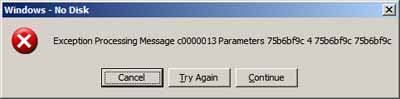
How to fix the No Disk c0000013 error

The Windows - No Disk c0000013 error message indicates that software is searching for data in an empty disk drive. You can neither close the error window nor shut down your PC. You can turn off your PC only by disconnecting its AC power.


The c0000013 Problem has various causes. For example, it can occur immediately after you insert an Ubuntu installation CD. It can also occur after you install new software, update your Windows operating system, or update security software. This problem also has multiple solutions, not all of which work for all people.

Simplest Solution
For most people, disabling all USB card readers is the simplest solution to the c0000013 problem. Of course, you can later temporarily enable any card reader as needed. For example, to download digital photos you can enable an appropriate card reader, and then disable again it after you have finished using it.

To fix the c0000013 problem by disabling all USB card readers, do the following:
  1. Click on the Start button, click on Settings, and then click on Control Panel to open it.
  2. Double-click on the System icon to display the "System Properties" window.
  3. Click on the Hardware tab to display its page, and the click on the Device Manager button to display its page.
  4. Click on the Disk drive plus sign (+) to list all disk drives.
  5. For each USB disk drive, such as the "Generic - Compact Flash USB Device," do the following:
         a. Right-click on the USB disk drive to display its menu.
         b. Click on Disable to display a confirmation window.
         c. Click on the Yes button to disable the USB card reader (disk drive).

Note: If you need to use any card reader frequently, you need not disable it; simply leave a card in its slot.

Other Solutions
If the above procedure does not fix your c0000013 error, you can try other solutions as detailed in the following websites: