- Open Google Docs, click Create new, click Drawing to display an Untitled drawing, click File, click Rename, and then type an appropriate name, such as "TClogo." Note: While using separate components (such as rectangles, circles, and triangles) to create your logo, set the boarder lines to Transparent so that your logo later displays smooth edges.
- Download your new drawing as a JPEG file, use GIMP to crop the logo, save it as a JPEG file (such as TClogo01.jpg), click Image, click Scale Image, set image height to 100 pixels, click Scale, click File, click Save, and then click Save again.
- Click File, click Save As, click Select File Type (By Extension), select PNG image, click Save, and then click Save again.
- Click Colors, click Color to Alpha, click OK, click File, and then click Save. This makes the white background of your logo transparent.
- Click File, click Save As, click Select File Type (By Extension), select GIF image, click Save, click Export, and then click Save.
- Sign into your Google Sites website, click More actions, click Manage site, click Site layout, and then click change logo.
- Select Custom Logo, click Choose File, navigate to and select your GIF logo file (such as TClogo01.gif), click Open, click OK, click Save Changes, and and then click Return to site.
12/08/2010
Adding a logo to a Google Sites website
To add a logo to the header on your Google Sites website, you should create a logo as a GIF file that has a transparent background. As detailed in the procedure below, you can do this through Google Docs, the GNU Image Manipulation Program (GIMP), and Google Sites:


3 comments,
Post a Comment


10/26/2010
Deleting Windows viruses through a Linux live CD
According to Katherine Noyes of PC World, you can Fix a Windows Infection Using Linux. You can use the live CD (or USB flash drive) for any Linux distribution. As an example, Katherine presents a procedure that lets you scan for Windows viruses through an Ubunutu 10.10 live CD.

For example, if you have a Windows PC that a virus has converted to a boat anchor, you can shut down, reboot through the live CD without installing Linux, and then use the antivirus utility on the CD. After deleting or quarantining the virus, remove the CD and reboot through Windows. Hopefully, your Windows again runs normally. If so, thank the penguin.

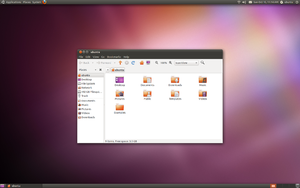
For example, if you have a Windows PC that a virus has converted to a boat anchor, you can shut down, reboot through the live CD without installing Linux, and then use the antivirus utility on the CD. After deleting or quarantining the virus, remove the CD and reboot through Windows. Hopefully, your Windows again runs normally. If so, thank the penguin.

No comments,
Post a Comment
9/06/2010
Saving money on phone calls
You can reduce your telephone expenses by using two phone systems:
Update on 10/27/10: Recently, I was pleasantly surprised to find a Gmail Call-phone capability I did not expect. You can call any business that asks you to press phone keys to access menu items. Simply use your mouse to click the Call-phone keys.
In recent decades, phone costs have been increasing faster than inflation. While still using the Plain Old Telephone System (POTS), I had noticed my phone company adding new "fees" or "service charges'' to my bill almost every month. My usage had not increased, but my wallet had grown thinner.

In 2005, I abandoned POTS and connected my phone to a Voice over Internet Protocol (VoIP) provider. At first, they charged reasonable rates for excellent service. For unlimited domestic calls, I paid approximately $28.00 per month, including taxes. However, about two years ago, my VOIP provider also stared adding "fees" and "service charges.'' Eventually, my monthly bill approached $40.00. After I reduced my plan level, from unlimited calls to 250 minutes per month, my monthly bill dropped to about $31.00. Again, this did not last. Additional "fees" and "service charges'' continued increasing my bill so that it again approached $40.00.
A few months ago, I abandoned my VOIP provider and bought a prepaid cell phone, which usually saves money for users like me who make relatively few phone calls.
More recently, I was also able to abandon half my cellphone, figuratively. Google has added a free Call-phone feature to Gmail. Therefore, I need not pay for outgoing calls. I now pay only for incoming calls to my cell phone.
I did need to buy a microphone for my PC. However, I do not feel guilty. Under similar circumstances, I believe even Jack Benny would have spent $12.00 for a microphone.

- A prepaid cell phone for incoming calls. The cheapest is currently 10 cents per minute.
- Google's free Call-phone feature for outgoing calls.
Update on 10/27/10: Recently, I was pleasantly surprised to find a Gmail Call-phone capability I did not expect. You can call any business that asks you to press phone keys to access menu items. Simply use your mouse to click the Call-phone keys.
In recent decades, phone costs have been increasing faster than inflation. While still using the Plain Old Telephone System (POTS), I had noticed my phone company adding new "fees" or "service charges'' to my bill almost every month. My usage had not increased, but my wallet had grown thinner.

In 2005, I abandoned POTS and connected my phone to a Voice over Internet Protocol (VoIP) provider. At first, they charged reasonable rates for excellent service. For unlimited domestic calls, I paid approximately $28.00 per month, including taxes. However, about two years ago, my VOIP provider also stared adding "fees" and "service charges.'' Eventually, my monthly bill approached $40.00. After I reduced my plan level, from unlimited calls to 250 minutes per month, my monthly bill dropped to about $31.00. Again, this did not last. Additional "fees" and "service charges'' continued increasing my bill so that it again approached $40.00.
A few months ago, I abandoned my VOIP provider and bought a prepaid cell phone, which usually saves money for users like me who make relatively few phone calls.
More recently, I was also able to abandon half my cellphone, figuratively. Google has added a free Call-phone feature to Gmail. Therefore, I need not pay for outgoing calls. I now pay only for incoming calls to my cell phone.

No comments,
Post a Comment
8/21/2010
Problems with OpenOffice.org on Ubuntu 10.4
If you are experiencing problems running OpenOffice.org under Ubuntu 10.4, you might be able to solve those problems by simply installing the OpenOffice.org Office Suite over your current OpenOffice.
After recently updating my PC to Ubuntu 10.4, I discovered I could not install the LanguageTool grammar-checker extension for Writer (the OpenOffice.org word processor). Also, I could not export an ODT file as an XHTML file. I found the solution to both problems accidentally. While looking for any Ubuntu software that might help, I stumbled upon OpenOffice.org Office Suite. Installing this suite over my existing OpenOffice repaired both problems.
For more details, please see my Associated Content document, How to Repair OpenOffice.org On Ubuntu 10.4.
After recently updating my PC to Ubuntu 10.4, I discovered I could not install the LanguageTool grammar-checker extension for Writer (the OpenOffice.org word processor). Also, I could not export an ODT file as an XHTML file. I found the solution to both problems accidentally. While looking for any Ubuntu software that might help, I stumbled upon OpenOffice.org Office Suite. Installing this suite over my existing OpenOffice repaired both problems.
For more details, please see my Associated Content document, How to Repair OpenOffice.org On Ubuntu 10.4.
1 comment,
Post a Comment
5/31/2010
Fixing Open Office Writer auto-"corrected" date
Open Office Writer is the the word processor in the free, open-source OpenOffice.org Productivity Suite. OOo Writer shares some "features" with Microsoft Office Word, including, unfortunately, automatic "corrections" that are a bit tricky to disable. Open Office developers should really fix this! By default, all auto corrections should be off (disabled). Users who want auto corrections could enable them selectively.
Currently, you can disable most automatic corrections according to How to Set Up Open Office Writer for Easy Use. However, even after you think you have turned off all automatic corrections, there are still a few active mines waiting for you to step on them. For example, today, while creating a table in Open Office Writer, I came upon a NASTY glich, bug, problem, and royal pain. To sort by dates across multiple years, I needed to enter dates as yyyy-mm-dd, such as "2009-09-23." Each time I tried this, OOo Writer automatically "corrected" it to "09/23/09," which I did NOT want.
If you have the same problem, do the following:
I am a huge fan of Open Office, and I really want to break my M$ addiction, but sometimes I am almost ready to give up.
Currently, you can disable most automatic corrections according to How to Set Up Open Office Writer for Easy Use. However, even after you think you have turned off all automatic corrections, there are still a few active mines waiting for you to step on them. For example, today, while creating a table in Open Office Writer, I came upon a NASTY glich, bug, problem, and royal pain. To sort by dates across multiple years, I needed to enter dates as yyyy-mm-dd, such as "2009-09-23." Each time I tried this, OOo Writer automatically "corrected" it to "09/23/09," which I did NOT want.
If you have the same problem, do the following:
- Select the table column that contains your date fields.
- Right-click your date column to display its menu, and then click Number Format to display its window.
- In the Category frame, scroll to and select Text, and then click OK to close the Number Format window.
I am a huge fan of Open Office, and I really want to break my M$ addiction, but sometimes I am almost ready to give up.
9 comments,
Post a Comment
4/17/2010
How to build a LAMP test website on Ubuntu
You can use a LAMP (Linux, Apache, MySQL, and PHP) test server on Ubuntu to develop a website on your computer before you upload it to a website host. To build a LAMP test website on your Ubuntu PC, you need to install LAMP and KompoZer, access your LAMP test website through root, edit your test website homepage, edit your test website new pages, and then test your website.
Installing LAMP and KompoZer
After installing LAMP and KompoZer, you can build and test a website in your LAMP test server on your Ubuntu PC. To install LAMP and KompoZer, do the following:
Accessing your LAMP test website as a root user lets you add and edit HTML files to expand and modify your test website. To access your LAMP test website, do the following:
 Initial LAMP Test Website
Note: For information about the testing.php file, see How to Set Up a LAMP Test Server on Ununtu.
Editing Your LAMP Test Website Homepage
Edit you LAMP test website home page according your requirements. For example, your homepage should include hyperlinks to other pages in your test website. This simple example has only a homepage and two other pages.
 Two New Pages on LAMP Test Website
Editing Your LAMP Test Website New Pages
Edit you LAMP test website new pages according your requirements. In each page, you should include links to Home and other pages in your test website. This simple example has only a homepage and two other pages.
Each time you finish editing any page on your LAMP test website, you should test that page by opening your test website in a web browser, such as Mozilla Firefox. In this simple example, you edited three pages. Therefore, you should test all three pages as follows:
Installing LAMP and KompoZer
After installing LAMP and KompoZer, you can build and test a website in your LAMP test server on your Ubuntu PC. To install LAMP and KompoZer, do the following:
- Install LAMP according to the instructions in How to Set Up a LAMP Test Server on Ununtu.
- Click System, select Administration, click Synaptic Package Manager, and then enter your password to display the Synaptic Package Manager window.
- In the Quick search field, type kompozer to display its package.
- Select kompozer and then click Apply to install the free KompoZer web-authoring software. Alternatively, you can install Bluefish. However, KompoZer is easier to use.
Accessing your LAMP test website as a root user lets you add and edit HTML files to expand and modify your test website. To access your LAMP test website, do the following:
- Open Ubuntu, click Applications, select Accessories, and then click Terminal to display its window and a "~$" (tilde dollar-sign) prompt.
- At the flashing cursor immediately after the "~$" prompt, Type sudo nautilus to run Nautilus and display a root - File Browser window.
- Click File System, double-click var, and then double-click www to open it. As shown below, your www folder (your LAMP test website) should initially contain two files: index.html and testing.php.

Note: For information about the testing.php file, see How to Set Up a LAMP Test Server on Ununtu.
Editing Your LAMP Test Website Homepage
Edit you LAMP test website home page according your requirements. For example, your homepage should include hyperlinks to other pages in your test website. This simple example has only a homepage and two other pages.
- Access your test website through your root browser according to the section above.
- Right-click index.html, select Open with, and then click KompoZer to open it and display your initial homepage.
- Type over the first line ("It Works!") with This is Your Test Website Homepage!
- Type over the second line with Here is a link to New Page One. Select (highlight) New Page One, click Link to display a Link Properties window, type http://localhost/newpageone.html into the Link Location field, and then click OK to add the hyperlink and close the window.
- Add a new line and type Here is a link to New Page Two Select (highlight) New Page Two, click Link to display a Link Properties window, type http://localhost/newpagetwo.html into the Link Location field, and then click OK to add the hyperlink and close the window.
- Click File, and then click Save to save your new homepage in your LAMP test website.
- Click File; click Save As to display the Save Page As window; in the Name field, type newpageone.html; and then click Save to create your New Page One in your test website.
- Click File; click Save As to display the Save Page As window; in the Name field, type newpagetwo.html; and then click Save to create your New Page Two in your test website.
- Minimize the KompoZer window to redisplay the root www - File Browser. As shown below, your www folder (your LAMP test website) should now contain four files: index.html, newpageone.html, newpagetwo.html, and testing.php.
- Edit your test website new pages according to the section below.

Editing Your LAMP Test Website New Pages
Edit you LAMP test website new pages according your requirements. In each page, you should include links to Home and other pages in your test website. This simple example has only a homepage and two other pages.
- Redisplay the KompoZer window. Click File, click Open File to display the Open HTML File window, select newpageone.html, and then click Open to display the page in a new KompoZer tab.
- Type over the first line ("This is Your Test Website Homepage!") with New Page One!
- In the second line, type over New Page One with Home. Select (highlight) Home, click Link to display a Link Properties window, type http://localhost/index.html into the Link Location field, and then click OK to edit the hyperlink and close the window.
- Click File, click Open File to display the Open HTML File window, select newpagetwo.html, and then click Open to display the page in a new KompoZer tab.
- Type over the first line ("This is Your Test Website Homepage!") with New Page Two!
- In the second line, type over New Page One with Home. Select (highlight) Home, click Link to display a Link Properties window, type http://localhost/index.html into the Link Location field, and then click OK to edit the hyperlink and close the window.
- In the third line, type over New Page Two with New Page One. Select (highlight) New Page One, click Link to display a Link Properties window, type http://localhost/newpageone.html into the Link Location field, and then click OK to edit the hyperlink and close the window.
Each time you finish editing any page on your LAMP test website, you should test that page by opening your test website in a web browser, such as Mozilla Firefox. In this simple example, you edited three pages. Therefore, you should test all three pages as follows:
- Open your web browser, type http://localhost in its address line, and then press Enter to display your LAMP test website homepage.
- Click on the New Page One hyperlink to display your new page one, and then click on the Home hyperlink to display your home page.
- Click on the New Page Two hyperlink to display your new page two, and then click on the Home hyperlink to display your home page.
- Click on the New Page One hyperlink to display your new page one, and then click on the New Page Two hyperlink to display your new page two.
- Click on the New Page One hyperlink to display your new page one, and then click on the New Page Two hyperlink to display your new page two.
4 comments,
Post a Comment
4/06/2010
How to set up a LAMP test server on Ubuntu
You can set up a LAMP (Linux, Apache, MySQL, and PHP) server as a test server on your Ubuntu 9.10 PC. A LAMP server lets you develop a website on your computer before you upload it to a website host. For additional information and details, see Tux Tweaks: Install LAMP Server on Ubuntu.
Additional Information, 04-13-10: As explained in the Note in the "Using LAMP Server as Your Test Server" section at the end of this article, you must open the root file browser before you can add files to LAMP test server.
Installing LAMP Server on Ubuntu
To install a LAMP test server on your Ubuntu PC, do the following:
Apache and php are components of the LAMP software bundle. To test Apache and php, do the following:
MySQL is the database component of the LAMP software bundle. To configure MySQL for use with your LAMP test server, do the following:
The phpMyAdmin utility simplifies working with a MySQL database within your LAMP test server. To install and test phpMyAdmin, do the following:
If you wish to work on only a single website, place its files in /var/www. To see the initial contents of folder www, click Places, click Computer, click File System, double-click var, and then double-click www to open it. Folder www intially contains only two files: index.html and testing.php.
Note: Before you can add files to your LAMP test server, you must click Applications, select Accessories, click Terminal to display its window, and then type sudo nautilus to open the root file browser. You can then paste HTML files into root/var/www.
If you wish to work on multiple web sites, go to Tux Tweaks: Apache Configuration.
Additional Information, 04-13-10: As explained in the Note in the "Using LAMP Server as Your Test Server" section at the end of this article, you must open the root file browser before you can add files to LAMP test server.
Installing LAMP Server on Ubuntu
To install a LAMP test server on your Ubuntu PC, do the following:
- Open Ubuntu, click Applications, select Accessories, and then click Terminal to display its window and a "~$" (tilde dollar-sign) prompt.
- At the flashing cursor immediately after the "~$" prompt, Type sudo apt-get install lamp-server^ and then press Enter to display a password prompt. Note: To type the "^" (caret symbol), use Shift+6.
- Type your password and then press Enter to display the packages that you can install, and "Do you want to continue [Y/n]?"
- Type y and then press Enter to start the installation and display a prompt to set your MySQL password. Type the password, press Enter to display a retype-password prompt, retype your MySQL password, and then press Enter to continue installing packages.
Apache and php are components of the LAMP software bundle. To test Apache and php, do the following:
- Open a web browser. Type http://localhost/ in the address field, and then press Enter to display a web page that says "It works! This is the default web page for this server. The web server is running but no content has been added, yet." This Apache server is your LAMP test server. Close the web browser.
- Click Applications, select Accessories, and then click Terminal to display its window. Type gksudo gedit /var/www/testing.php and press Enter to display a password prompt. Enter your Ubuntu password and click OK to open a gedit text-editor window.
- Type into the text editor, and then click Save to save the file. Close the text-editor window to redisplay the terminal window.
- Type sudo /etc/init.d/apache2 restart and press Enter to restart the Apache server.
- Open a web browser. Type http://localhost/testing.php/ in the address field, and then press Enter to display a web page that shows details about your php installation.
MySQL is the database component of the LAMP software bundle. To configure MySQL for use with your LAMP test server, do the following:
- Click Applications, select Accessories, and then click Terminal to display its window.
- Type cat /etc/hosts | grep localhost and press Enter to display "127.0.0.1 localhost ::1 localhost ip6- localhost ip6-loopback." 127.0.0.1 is your localhost IP address. localhost is red.
- Type cat /etc/mysql/my.cnf | grep bind-address and press Enter to display "bind-address = 127.0.0.1." If the bind address does not match your localhost address, type gksudo gedit /etc/mysql/my.cnf to open a gedit text-editor window, scroll to the bind address, and then change it to "127.0.0.1".
The phpMyAdmin utility simplifies working with a MySQL database within your LAMP test server. To install and test phpMyAdmin, do the following:
- Click Applications, select Accessories, and then click Terminal to display its window. Type sudo apt-get install libapache2-mod-auth-mysql phpmyadmin and press Enter to display the packages that you can install, and the message "Do you want to continue [Y/n]?"
- Type y and then press Enter to start the installation and display a Configuring phpmyadmin window. Use your keyboard up and down arrow keys and its spacebar to select apache2, and then press Enter to continue the installation and display another Configuring phpmyadmin window.
- Use the Tab key to select Yes and then press Enter to display a database-password prompt. Type your MySQL password (you had set this in the Installing LAMP section above), and then press Enter to display a phpMyAdmin-password prompt.
- For simplicity, you can use your MySQL password also as your phpMyAdmin password. Type your MySQL password, and then press Enter to display a password-confirmation prompt. Retype your MySQL password and then press Enter to finish installing phpMyAdmin. Close the terminal window.
Open a web browser. Type http://localhost/phpmyadmin/ in the address field, and then press Enter to display the phpMyAdmin login web page. In the Username field, Type root in the Username field, type your MySQL password in the Password field, and then click OK to display a phpMyAdmin window.
If you wish to work on only a single website, place its files in /var/www. To see the initial contents of folder www, click Places, click Computer, click File System, double-click var, and then double-click www to open it. Folder www intially contains only two files: index.html and testing.php.
Note: Before you can add files to your LAMP test server, you must click Applications, select Accessories, click Terminal to display its window, and then type sudo nautilus to open the root file browser. You can then paste HTML files into root/var/www.
If you wish to work on multiple web sites, go to Tux Tweaks: Apache Configuration.
1 comment,
Post a Comment
Subscribe to:
Posts
(
Atom
)