3/30/2012

How to keep your Ubuntu PC up-to-date


According to the University of Chicago IT Services, keeping your Linux operating system up-to-date helps it remain secure and efficient. Linux operating systems, including the Ubuntu distribution, provide software updates (patches and security updates) when needed, The procedures in this document specifically apply to Ubuntu 11.10 and newer releases, and generally to all LInux distributions.
Opening the Ubuntu Update Manager - To open the Ubuntu Update Manager, do the following:
  1. At the top of the Launcher (at the left of the desktop), click the Dash icon to display its window.
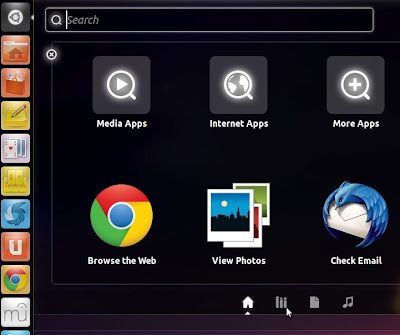
  2. Click the Search Application icon (the second icon at the bottom of the Dash home window), to display some of the application icons.

  3. Click Fiter results, click System and then click Update Manager to open it and display its window.

Setting your Ubuntu update options - To set your Ubuntu update options, do the following:
  1. Open the Ubuntu Update Manager as explained above.
  2. Click Settings to display the Updates page in the Software Sources window.
  3. Set security updates to Download automatically.
  4. Set other updates to Display immediately.
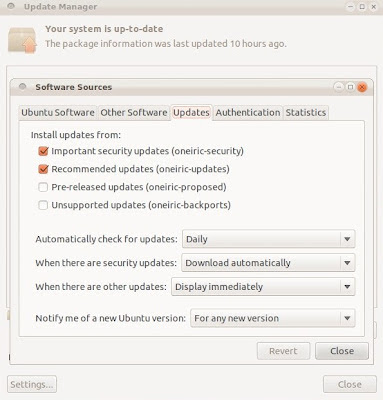
  5. Close the Settings window and then close the Update Manager window.

Installing updates into your Ubuntu system - To install updates to the Ubuntu operating system on your PC, do the following:
  1. Open the Ubuntu Update Manager as explained in the first section above. (Alternatively, if the Launcher is announcing available updates by displaying the Update Manager icon, you can click on it to open it.)
  2. Click Check to display the Updating Cache window and list all available updates.
  3. Click Install Updates to display the Authenticate window.
  4. Type your password and then click Authenticate to download the updates and display the Applying Changes window.
  5. Wait for the Update Manager to finish applying the changes, and then if "your computer needs to restart to finish installing updates," click Restart Now .

3/26/2012

How to burn a bootable CD or DVD


A bootable disc runs independently of the operating system on your computer. For a example, if you boot your PC through a bootable "live CD" for a Linux distribution, you can test that distribution, and install it you wish. To create a bootable disc, you must download its ISO file (disc image), and then burn it (copy it) to a writable optical disc (CD or DVD).

Note: Usually, you won't need a permanent copy of your disc image. Therefore, to conserve Earth's resources and save your money, you should use a read-and-write optical disc (CD-RW or DVD RW).
Downloading an ISO file - To download an ISO file, do the following:
  1. Go to the website from which you wish to download an ISO file.
  2. Download your selected ISO file, for example, you might download a distribution of Linux, such as Ubuntu, Linux Mint, or Fedora.
  3. Burn the ISO file to an optical disc according to the section below.

Burning a bootable disc - This procedure explains how to burn a bootable disc in a Windows 7 system. The procedures for Linux and Mac operating systems are similar. To burn an optical disk in Windows 7, do the following:
  1. Double-click Windows Explorer, and then select Downloads.
  2. Right-click the ISO file you wish to burn, and then click Burn disc image.
  3. Click Burn to copy the ISO file to your optical disc.
  4. Wait for the Image Burner window to display a "successfully burned" message.
  5. Remove and label your bootable disc.

3/24/2012

How to download and install LibreOffice


LibreOffice, provided by The Document Foundation, is an excellent, powerful business productivity suite that replaces Microsoft Office for most tasks that most people perform. As open-source software, LIbreOffice is free to download, install and use.

LibreOffice for Linux - You need not download LIbreOffice for Linux. Major Linux distributions, such as Debian, Linux Mint and Ubuntu, include LIbreOffice. For each release, each distribution updates its LibreOffice to the newest version. For example, Ubuntu 11.10 currently includes LibreOffice. Scheduled for release in April, 2012, Ubuntu 12.04 will include LibreOffice 3.5.
LibreOffice for Mac - To download and install LibreOffice on a Macintosh computer, follow the instructions at Installation of LibreOffice on a Mac.
LibreOffice for Windows 7 - To install LibreOffice on a Windows 7 PC, do the following:
  1. Uninstall any existing versions of OpenOffice.org and/or LibreOffice.
  2. Go to the LibreOffice Download page, click the Main installer to download its file.
  3. Click Keep, click the downloaded file, and then wait for it to open and display the Open File - Security Warning window.
  4. Click Run to open the Installation Wizard.
  5. Click Next to display the Setup Type window, click Next, click Install to install LibreOffice, and then click Finish.
  6. Click LIbreOffice built-in help, repeat steps 3 and 4 to install the LibreOffice Help Pack, and then click Finish.

3/23/2012

How to repair or rebuild your desktop PC

Although many people consider full-size desktop PCs too old fashioned, they have one great advantage over other PCs, including laptops, netbooks, tablets, and most all-in-one desktops: You can easily repair a desktop PC, or rebuild it if necessary. If you are careful and patient, this can save you a lot of money. You are not limited to replacing only pluggable components, such as hard drives and memory modules. If necessary, you can rebuild your PC by replacing its motherboard (mainboard).
Repairing your desktop PC - After your desktop PC fails, you need to determine which component to replace. When you try to boot your system, does it display a message? For example, if it displays "DISK BOOT FAILURE," you can almost certainly correct the problem by replacing the hard drive. However, if your system displays no message and all its indicators are dark, you might need to replace its power supply. If replacing the power supply does not repair your PC, you can try rebuilding it by replacing its motherboard (mainboard).

Rebuilding your desktop PC - To replace the motherboard of a desktop PC, you need remove most of its components, remove its defective motherboard, install a new motherboard, and then reinstall the other components, thereby rebuilding it. To rebuild your PC, do the following:
  1. Disonnect all power supply cables and move them out of your way.
  2. Remove all pluggable components from the old motherboard, such as its processor and its memory modules. Note: Avoid static-electric damage to these components. Before removing each component, be sure to first touch any bare-metal surface in the PC case. Store the components carefully (in antistatic bags if possible) because you will reinstall them later.
  3. Order a replacement motherboard. If you cannot find an exact match (such as identical model number) order the same type (such as micro ATX). Examine its specifications to verify it supports your existing components, including the processor (such as AMD Athlon) and RAM memory (such as DDR2).
  4. After your new motherboard arrives, and before you install it, verify that its front-panel sockets match the front-panel plugs in your old PC case. If not, you need also order a new PC case.
  5. Rebuild (reassemble) your PC.
  6. Install an operating system. If you install Microsoft Windows, you need to also install motherboard drivers.
  7. Test your PC to verify that it runs correctly.

7/31/2011

Why not use a desktop computer?

I grow rather tired of almost every 'computer authority' online continually stating that "desktop computers are dead." I strongly disagree, for several reasons:
  • Desktop computers are less expensive than portable devices that have comparable capabilities.
  • Peripherals for desktops are easier to use. Larger displays are more readable than smaller screens. Mice are are more precise than touch pads. Full-size keyboards are much more fun than their miniature emulators.
  • A desktop PC can help you save additional money through open source software, such as Ubuntu (a free Linux operating system) and LibreOffice (a free alternative to M$ Office). For example, you can order a desktop PC without an operating system, and then install a Linux operating system and whatever open-source software you need.
  • Desktop PCs are easier to repair than most portable devices.
  • Some new desktop PCs, such as the Zotac ZBOX Mini PC occupy little space and consume little power.

5/28/2011

Using Shutter to take screenshots in Linux

The procedures in this document can help use the Shutter screenshot tool for Linux. You can capture your entire desktop, an active window, or any rectangular area you select. Shutter lets you save your screenshots directly as JPEG image files. In contrast, pressing PrtScn (Print Screen) to capture a desktop, or Alt+PrtScn to capture an active window, lets you save your screenshot only as a PNG file. If you want a JPEG, you must separately convert it from a PNG.

You can install Shutter through the software-application catalog in your Linux operating operating system. For example, for Ubuntu, you can use the Ubuntu Software Center.

Configuring Shutter
To configure Shutter, do the following:
  1. Open Shutter to display its window as shown in Figure 1.
  2. Click the down arrow at the right of Selection, and then select Advanced selection tool. This lets you resize your selection rectangle before you take a screenshot.
  3. In the Shutter toolbar at the top of the desktop, click Edit, and then click Preferences to display its window as shown in Figure 2.
  4. Set Image-format to jpeg, Directory to Desktop, select (check mark) Include cursor when taking a screenshot and then set the capture delay to 15 seconds.
Figure 1 - Shutter lets you take a screenshot as a Selection, Desktop, or Window.
In Ubuntu 11.04, the Shutter toolbar is above your desktop, at the left.
Figure 2 - My recommended Preferences are setting Image-format to "jpeg,"
Directory to "Desktop," selecting (check marking) "Include cursor when
taking a screenshot" and setting the capture delay to "15" seconds.
Capturing your desktop
To take a screenshot of your desktop through Shutter, do the following:
  1. Start Shutter, click the down arrow at the right of Desktop, and then click Capture all Workspaces to take the screenshot and place an icon for its new JPEG on your desktop.
  2. In the Shutter window, close the image tab by clicking on its X, and then minimize the Shutter window.
  3. Double-click the new icon to display an image similar to Figure 3.
Figure 3 - A desktop screenshot.
Capturing an active window
To take a screenshot of an active window through Shutter, do the following:
  1. Select a window to activate it. For example, I activated the Calculator window as shown in Figure 3.
  2. Start Shutter, click the down arrow at the right of Window, and then click "Active Window" to take the screenshot and place an icon for its new JPEG on your desktop.
  3. In the Shutter window, close the image tab by clicking on its "X," and then minimize the Shutter window.
  4. Double-click the new icon to display an image similar to the fourth image above.
Figure 4 - An active-window screenshot.
Capturing a rectangular area
To take a screenshot of a rectangular area through Shutter, do the following:
  1. On your desktop, group whatever items you plan to include in your captured rectangular area.
  2. Start Shutter, click Selection, use your mouse to draw a rectangular area, and then press Enter to take the screenshot and place an icon for its new JPEG on your desktop.
  3. In the Shutter window, close the image tab by clicking on its X, and then minimize the Shutter window.
  4. Double-click the new icon to display an image similar to Figure 5.
Figure 5 - A selected-rectangular-area screenshot.

4/17/2011

An ancient IBM vacuum-tube mainframe computer

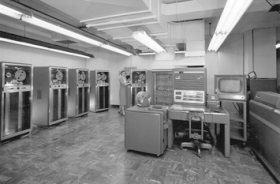
In early 1957, I saw my first computer during a high-school field trip to an IBM office in Cleveland, Ohio. It was a vacuum-tube mainframe in the IBM 700 series. Though I can find no record of that particular IBM office, its mainframe was most probably an IBM 705 Data Processing System, which had been designed to process business data.

The office was a single, large, street-level room that combined a reception area and a data-processing workspace. An IBM employee, probably an office manager, gave us his 'grand tour,' which was lecturing to us while we stood in the center of the room. The equipment included an operator's station, a large card punch and reader, and a few cabinets for tape drives and power supplies. Through a glass wall, we could see multiple racks of glowing vacuum tubes in the back room.


Each IBM 700 series mainframe included a vacuum-tube processor, a magnetic-core memory and data-storage devices for punched cards and magnetic tape.

Vacuum-tube processor
A vacuum-tube processor in an IBM 700 series mainframe was roughly similar to the CPU in a modern PC. This processor executed program instructions, performed calculations, and communicated with magnetic-core memory and data-storage devices.

I had recently seen a classmate's transistor radio. Therefore, at the end of our host's 'sermon,' I asked him whether IBM would ever use transistors in its computers. He said, "No," and explained that transistors could never work as quickly as vacuum tubes.

Magnetic core memory
A magnetic-core memory in an IBM 700 series mainframe was roughly similar to RAM in a modern PC. This magnetic-core memory was the working memory through which the processor made calculations. A magnetic-core memory consisted of ferrite rings in a wired array, with three wires threaded through each ring. Current pulsed simultaneously through two wires would magnetize each ring in either of two directions (states), on or off (1 or 0). The third wire would sense a change in state.

Data-storage devices
Each IBM 705 mainframe would use data-storage devices to store data to, and retrieve it from, punched cards or magnetic tape. A business customer would use cards or tape to bring its payroll, or other business-operation data, to the IBM data center. After processing these data through its mainframe, IBM would use cards or tape to send the results to the customer.

Sources: