7/16/2014

Creating an online archive through Google Drive

If you publish articles, essays, stories or poems through an online publisher, and it shuts down its website, you lose all documents you haven't archived. While you are creating any online document, you might write text directly into a publisher's website. Although this is convenient, you risk losing your work forever if you don't make a backup copy. Therefore, you should archive all your online documents.

You can create an archive either in cloud storage, through an online productivity suite such as Google Drive, or offline on your PC drive or its external media, through an offline productivity suite such as LibreOffice. This document can help you build an archive by creating archive folders, creating portable document files (PDFs), creating archive text files, and archiving image files.

Note: This document specifically applies to creating an online archive through Google Drive, and generally to creating an online or offline archive through other software suites. Therefore, this document can serve as a guideline regardless of your particular writing tools and preferences.
Creating archive folders
Archive folders are appropriate folders and subfolders that help you organize your archive files. You can create a main folder, a subfolder for each publisher, and a sub-subfolder for each document. Here's an example hierarchy:

MyOnlineArchive (main) - contains three publisher folders:
AcmePubs (publisher)
FlyByNitePubs (publisher) - contains two document folders:
HowToWaxYourCeiling (document)
UnderstandingArcticAlligators (document)
GizmochePubs (publisher)


Figure 1 shows the above hierarchy as created in Google Drive folders.


Figure 1 - Example archive folders
Creating archive PDFs
An archive PDF is the primary backup file for your online document because a PDF preserves your original formatting. You should start creating your archive PDFs after creating your archive folders according to the section above. For each online document you wish to archive, create a PDF and then save it in that document's archive folder. Later, if necessary, you can use the archive PDF as a source for a new document that you publish on another website.

Note: You shouldn't simply copy text from your online document and paste it into a text file because this does not preserve your original formatting 

The specific procedure for creating a PDF varies according to your PC and its operating system. Generally, you can create an archive PDF as follows:

  1. Right-click anywhere in the document to display a Print menu as shown in Figure 2. 
  2. Click Print to display its window, and then select Print to file. If the window displays a Destination field, and it does not contain "Save as PDF," click Change to display a Select-a-destination window, and then click Save as PDF.
  3. According to the title of your online document, name its archive PDF appropriately, such as Understanding_Arctic_alligators.pdf.
  4. Click Save, select your target folder, such as UnderstandingArcticAlligators, click Open, and then click Save to generate your archive PDF.
  5. Verify that your archive PDF is in its appropriate folder, such as shown in Figure 3.
Figure 2 - Selecting your print menu
Figure 3 - An example archive PDF in its appropriate document folder
Creating archive text files
After creating your archive folders and archive PDFs according to the sections above, you can create archive text files. To create an archive text file, do the following:
  1. Open the archive PDF from which wish to create a new document.
  2. Create a new word-processor document, such as a new Google Docs document in Google Drive.
  3. Copy text from your PDF and then paste it into the word-processor document that is your archive text file.
  4. Rename the archive text file to match your archive PDF.
  5. Save your archive text file into its appropriate document folder, such as UnderstandingArcticAlligators, as shown in Figure 4.
Figure 4 - Adding a text file to a document folder
Archiving image files
As shown in Figure 5, you can add image files to any document folder.

Figure 5 - Adding image files to a document folder

5/03/2014

Installing Linux into a specific partition

Multibooting more than one Linux operating system (OS) can help you compare precisely how each works on your PC. While installing a Linux OS, you might wish to install it into a specific partition on your hard disk or solid-state drive (SSD). This document can help you create a new logical partition and then install a new Linux OS into it.

Author's note: In my experience, multibooting Linux operating systems works best with Ubuntu and Ubuntu-based operating systems.

Creating a new logical partition
You can add a new Linux OS to a PC on which you have already installed at least one other OS. For example, your multiboot configuration might include two partitions and an extended partition, as follows:
  • Partitions /dev/sda1 and /dev/sda2 contain an MS Windows 7 OS.
  • Extended partition /dev/sda3, contains three logical partitions for Linux. Allow at least 20 GB for each Linux OS.
  • Logical partition /dev/sda5 contains your Ubuntu Linux OS.
  • Logical partition /dev/sda6 contains the Linux swap file. Note: Regardless how many Linux operating systems you plan to install, you need only one swap partition (approximately 2 GB).
  • Logical partition /dev/sda7 contains your Linux Mint OS.
You need to create a new logical partition before you can install a third Linux OS into the above example configuration. As shown in Figure 1, you can use the Gnome Partition Editor (GParted) to create a new logical partition, such as /dev/sda8.
Figure 1 - Creating a new logical partition, /dev/sda8.

Installing Linux into a root partition
While installing Linux into a specific logical partition you must define that partition as root. To install a new Linux OS into your new logical partition, do the following:
  1. Download an ISO image file of the Linux OS that you wish to install, and then burn it to a DVD to create a live disc. Alternatively, you can use an ISO image to create a live usb drive.
  2. Boot the live disc and then begin installing your new Linux OS. When you see an Installation-type window similar to Figure 2, select Something else, which lets you install your new Linux OS into your new logical partition.
  3. Click Continue to display a window to similar to Figure 3, select (highlight) your new logical partition, and then double-click it to display an Edit-partition window as shown in Figure 4.
  4. In the Use-as dropdown menu, select Ext4 journaling file system.
  5. Checkmark the Format the partition box.
  6. In the Mount-point dropdown menu, select "/" to define your new logical partition as root.
  7. Click OK to close the Edit-partition window, and then click Install now. Note: Do not try to skip steps 4 through 7. Omitting them displays an error message, "No root file system is defined. Please select this from the partitions menu." For more information, see Ask Ubuntu.
  8. Install your new Linux OS and then reboot your PC to display a Grand Universal Boot (GRUB) menu similar to Figure 5. In this example, Zorin OS 6 is the new Linux OS. Note: If your GRUB menu does not display, you can restore it through an open-source Boot Repair CD.
Figure 2 -  On the Installation Type menu, you select "Something else" if you
wish to create a partition into which you can install your new Linux OS.
Figure 3 - Selecting (highlighting) your new logical partition.
Figure 4 - Double-clicking your new logical
partition displays an Edit-partition window.
Figure 5 - Your GRUB menu should include your new Linux OS, such as Zorin OS 6.

4/18/2014

Two phones can be cheaper than one

Two mobile phones can be cheaper than one. Provided you don't need constant Internet access, you can save at least $380.00 per year by carrying two phones; a prepaid 'dumb' phone, and a non-plan, Android smartphone as a tablet PC.

Dumb phone
A dumb phone, also known as a feature phone, lets you make and receive voice calls and text messages through a 3G network. A dumb-phone prepaid plan costs approximately $100 per year.

Typically, you prepay your account by $30, $60 or $100. Larger amounts have longer intervals. For example, if you prepay $100, you have a full year in which to use your $100. If you refill your account on time, your remaining amount rolls over. When you use your phone, the phone company charges your account 10 cents per minute for each voice call, and 25 cents each for text messages.
Dumb phone = $100 per year
Smartphone
A smartphone is far more than a voice-and-text phone; it is a pocket PC that also lets you upload and download Internet data through a 3G or 4G phone-company network. Currently, in April 2014, the least-expensive smartphone plan typically costs $480 per year for unlimited voice, text and data access.
Smartphone = $480 per year
A non-plan smartphone has no phone-company network. You can use any non-plan Android smartphone as a tablet PC. If the phone is not older than two years, it will almost certainly work well as a pocket-size tablet PC.

To obtain a non-plan smartphone, you can ask a friend or relative to sell you his or her old smartphone. Alternatively, you can buy a new or refurbished smartphone, without a phone-company plan. The smartphone is not the main cost; the phone-company plan is the large, on-going expense.

For your non-plan smartphone, you can download free apps that you can run either offline or through WiFi. You should select (on Google Play) apps that you can sync with your other computers. Example apps that you can sync include:
  • Wunderlist
  • Evernote
  • Go contact
  • Keep
Not-so-dumb phones
A set of not-so-dumb phones consists of two phones, a dumb phone with a prepaid plan ($100) and a non-plan smartphone. Therefore, by carrying two not-so-dumb phones, you can save at least $380 per year. ($480 - $100 = $380)
Not-so-dumb phones = $100 per year

4/02/2014

Getting started with Java development

Java, developed by Oracle, is possibly the most widely-applied, open-source programming language on Earth. Therefore, whether you are studying software development as a professional or a hobbyist, learning to program Java code can be valuable. To develop Java applications, you need two separate packages of Java-programming tools:
  • A Java development kit (JDK)
  • An integrated development environment (IDE) for Java, such as NetBeans, Eclipse or IntelliJ
Oracle distributes a convenient Java software bundle that contains both JDK 8 for the Java Standard Edition (SE) and NetBeans 8.0. This document can help you download and install a Java bundle, and then create your first Java application.

Downloading a Java Bundle
To download your JDK 8 and NetBeans 8.0 software bundle, do the following:
  1. Go to Java SEDownloads as shown in Figure 1.
  2. Click NetBeans DOWNLOAD to display the JDK 8 with Netbeans 8.0 window.
  3. Click JDK 8 and NetBeans 8.0 Cobundle License Agreement to display its window.
  4. Read the agreement and then close its window.
  5. Select Accept License Agreement.
  6. Click the download file for your operating system, and then wait for the download to finish. Note: If you have a 64-bit operating system, select an x64 bundle. For 32-bit operating system, select an i586 bundle.
  7. Continue according to the section below.
Figure 1 - Java Standard Edition (SE) downloads window
Installing Your Java Bundle
Your downloaded Java software bundle is an executable file through which you launch an installation program for the JDK and NetBeans. Install your Java bundle according to the two subsections below:
  1. Running Your Bundle Executable File
  2. Running Your Bundle Installation Program
Running Your Bundle Executable File - How you run your bundle executable file varies according to your operating system. If you have Linux, your executable file is a .sh file. For example, if you have 32-bit Ubuntu Linux, your executable file is jdk-8-nb-8-linux-i586.sh, which is a shell script that you run as follows:
  1. Open a terminal window as shown in Figure 2.
  2. At the $ prompt, type cd Downloads and then press Enter.
  3. At the /Downloads$ prompt, type sudo bash jdk-8-nb-8-linux-i586.sh and then press Enter to display a password prompt.
  4. Type your password and then press Enter to run the script and open the installation-program Welcome window.
Note: For more information, see Installing the Software Bundle on Linux.
Figure 2 - Terminal window in Xubuntu, an Ubuntu Linux distribution
If you have OS X, your executable file is a .dmg file. For example, if you have 64-bit OS X (v10.7.3 or newer), your executable file is jdk-8-nb-8-macosx-x64.dmg. Run this executable file as explained in Installing the Software Bundle on OS X.

If you have Windows, your executable file is an .exe file. For example, if you have 64-bit Windows, your executable file is jdk-8-nb-8-windows-x64.exe. Run this executable file as explained in Installing the Software Bundle onMicrosoft Windows.

Running Your Bundle Installation Program - Run your bundle installation program as follows:
  1. Run your bundle executable file according to the section above .
  2. In the Welcome window, click Next to display the JUnit License Agreement, select I accept the terms in the license agreement. Install JUnit, and then click Next.
  3. Choose the JDK installation folder or accept the default (currently required in Windows), and then click Next.
  4. Choose the NetBeans IDE installation folder and the JDK for the IDE, or accept their defaults, and then click Next.
  5. Review the Summary, select Check for Updates, and then click Install.
  6. After the bundle installation program displays its Setup Complete window, click Finish to close the window.
  7. Create a desktop shortcut for NetBeans IDE 8.0, and then continue according to the section below.
Creating Your First Java Application
After downloading and installing your Java bundle, you can create your first Java application as follows:
  1. Double-click NetBeans IDE 8.0 (either in your applications menu, or on your desktop) to launch your IDE.
  2. Click File, click New Project, click Java, select Java Application and then click Next.
  3. Type HelloWorldApp as the Project Name, and then click Finish to display the initial Java code.
  4. Scroll to the following comment line: // TODO code application logic here
  5. Type over that comment line with: System.out.println("Hello World");
  6. Click File, click Save, click Run and then click Run Project (HelloWorldApp) to display Hello World! in the Output window of your NetBeans IDE as shown in Figure 3.
Note: For more information, go to A Closer Look at the Hello World Application.
Figure 3 - Your first Java application in NetBeans
After downloading and installing your Java bundle, and creating your first Java application, you can use the web to learn more about developing Java applications. Here are a few sample links:

2/16/2014

Getting started with Android development

You can develop Android application programs (apps) on any PC that run a Linux, Macintosh OS X, or Microsoft Windows operating system (OS). Google provides an open-source Android software development kit (SDK) that includes an Eclipse integrated development environment (IDE) and a bundle of Android Development Tools (ADT). This document can help you download the Android SDK, set up the ADT bundle, and then create and run your first app.
Downloading the Android SDK
To download the Android SDK, do the following:
  1. If you do not already have a Google account, open one. 
  2. Go to developers.google.com/android/, and then click "Get the Android SDK," in the left column. 
  3. Click "Download the SDK ADT Bundle for (your OS)." 
  4. Agree with the terms and conditions, select either 32- or 64-bit, and then click "Download the SDK ADT Bundle for (your OS)." 
  5. After the download completes, go to the Setting Up the ADT Bundle section below. 

Setting Up the ADT Bundle
To set up the ADT bundle for your OS, do the following:
  1. Download the Android SDK bundle according to the Downloading the Android SDK section above. 
  2. At the left, click "Setting Up the ADT Bundle" to display its page. 
  3. Create a new "Android_Development" folder in your home folder. 
  4. Unpack (unzip) your downloaded adt-bundle-(your_OS) ZIP file, and then copy its adt-bundle- (your_OS) folder into your Android_Development folder. 
  5. In your adt-bundle-(your_OS) folder, open the eclipse folder, right-click the "eclipse" executable file to display its menu, create a Link-to-eclipse shortcut (for example, in Linux, click "Make Link"), and then move that shortcut to your desktop. 
  6. Go to the Creating Your First Android App section below.

Creating Your First Android App
To create your first Android app, do the following:
  1. Set up the ADT bundle for Linux according to the Setting Up the ADT Bundle section above. 
  2. Go to developers.google.com/android/, click "developer.android.com," in the center column, click "Training" at the top of the page, click "Building Your First App" to display its submenu, and then click "Creating an Android Project." 
  3. On your OS toolbar, click "File," click "Print" to display its page, and then click "Print" to print the three-sheet Creating an Android Project lesson. Note: For a tree-saving alternative, you can view the lesson instructions on a separate PC. 
  4. On your desktop, double-click your "Link to eclipse" shortcut to display the Workspace Launcher window. 
  5. Click "OK" to display the Android IDE Welcome window. 
  6. Click "New Android Application," and then follow the instructions in the Create-a-Project-with-Eclipse section of the Creating-an-Android-Project lesson. 
  7. Click "next lesson" and then go to the Running Your First Android App section below.

Running Your First Android App
To run your first Android app, do the following:
  1. Create your first Android app in Linux according to the Creating Your First Android App section above. 
  2. Go to developers.google.com/android/, click "developer.android.com," in the center column, click "Training" at the top of the page, click "Building Your First App" to display its submenu, and then click "Running Your App." 
  3. Print the three-sheet Running Your App lesson, and then follow its instructions to run your app either on a real Android device (phone or tablet) or on an Android Virtual Device (AVD), which is an emulator.

Note: Running an app on an Android phone or tablet is relatively simple. In contrast, depending on your specific PC hardware and software configuration, you might have trouble running your app on the AVD. For example, the AVD might not launch, as reported in Waiting for home. Android process Acore to be launched. 

1/03/2014

Troubleshooting an Ubuntu boot problem

If Ubuntu Linux does not boot correctly on your PC, this document can help you correct the problem by troubleshooting through Ubuntu's recovery mode, troubleshooting through a boot-repair CD, or by updating the display driver.

If you have installed only Ubuntu, you have a single-operating-system (single-OS) PC. If you have also installed at least one other OS, such as Linux Mint and/or MS Windows, you have a multiboot PC.

Note: The procedures in this document primarily apply to PCs that were built before 2011. Therefore, if your PC was built since 2010, booting more than one OS is difficult due to the Unified Extensible Firmware Interface (UEFI). For more information, please see Ubuntu Documentation - UEFI.

Troubleshooting Through Recovery Mode
After opening the GRand Universal Bootloader (GRUB) menu, you can troubleshoot an Ubuntu boot problem through the Recovery mode, which lets you repair broken packages and, if necessary, check all file systems.

Opening the GRUB Menu - How you open the GRUB menu varies according to whether you have installed Ubuntu on a single-OS or a multiboot PC:
  • For Ubuntu on a Single-OS PC, open the GRUB menu according to the procedure on the Ubuntu wiki Recovery Mode web page.
  • For Ubuntu on a multiboot PC, starting or restarting that PC opens a GRUB menu that lets you select an OS to boot.

Repairing Broken Packages - Repairing broken packages might correct an Ubuntu boot problem. To repair broken packages, do the following:

  1. Open GRUB according to the Opening the GRUB Menu section above.
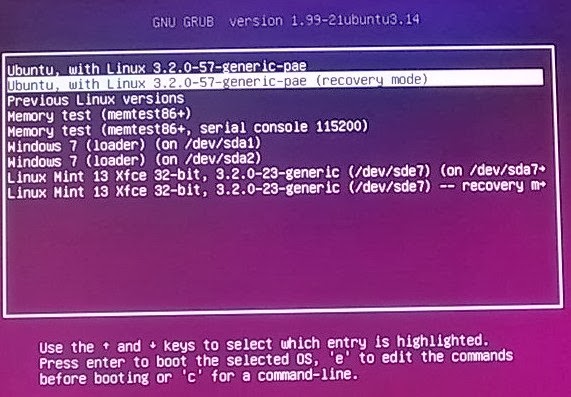
  2. As shown in Figure 1 below, highlight Ubuntu - - Recovery Mode, and then press Enter to boot in Recovery mode.
  3. As shown in Figure 2 below, highlight dpkg _ _ Repair broken packages, press Enter, and then follow the prompts to repair the packages.
  4. Use the Testing Ubuntu Boot section below to test whether you have repaired the Ubuntu boot problem.

Checking All File Systems - Checking all file systems might correct an Ubuntu boot problem. To check all file systems, do the following:

  1. Open GRUB according to the Opening the GRUB Menu section above.
  2. As shown in Figure 1 below, highlight Ubuntu - - Recovery Mode, and then press Enter to boot in Recovery mode.
  3. Highlight fsck _ _  Check all file systems, press Enter, and then follow the prompts to check the file systems.
  4. Use the Testing Ubuntu Boot section below to test whether you have repaired the Ubuntu boot problem.
Figure 1 - Selecting Ubuntu Recovery Mode
Figure 2 - Repairing Broken Packages
Troubleshooting Through a Boot Repair CD
You can use a boot repair CD to find and correct many Ubuntu boot problems. To troubleshoot through a boot-repair CD, do the following:
  1. Through any PC, download the Boot-Repair-Disk ISO file from Sourceforge.
  2. Burn the ISO file onto a blank CD to create a boot-repair CD.
  3. Boot your PC through your boot-repair CD.
  4. When prompted, click Recommended repair, and then follow the prompts.
  5. Use the Testing Ubuntu Boot section below to test whether you have repaired the Ubuntu boot problem.

Updating the Display Driver
An outdated display driver can cause Ubuntu to boot incorrectly and/or intermittently. To update to the newest display driver, do the following:

  1. In the Launcher, click the System Settings icon.
  2. In the Hardware frame, click Additional Drivers to display its window.
  3. Wait while Ubuntu searches for drivers, and then displays the Additional Drivers window.
  4. As shown in Figure 3 below, select the newest possible display driver. For example, in Ubuntu 12.04, you could select "NVIDIA accelerated graphics driver (post-release updates) (version 304-updates)."
  5. Use the Testing Ubuntu Boot section below to test whether you have repaired the Ubuntu boot problem.

Figure 3 - Selecting the Newest Possible Display Driver
Testing Ubuntu Boot
After troubleshooting Ubuntu boot through any section above, you need to test whether Ubuntu boots correctly. To test Ubuntu boot, do the following:

  1. Shut down your PC.
  2. Wait at least 15 seconds.
  3. Start your PC.
  4. Boot Ubuntu. If it does not boot correctly, continue troubleshooting through any other appropriate section above. Note: In case this document has not helped, you can check Ubuntu Support.

11/11/2013

Making and receiving phone calls through Gmail

Gmail Call Phone lets you make free calls from your computer (Linux, Mac or MS Windows) to anywhere in the United States and Canada. Google Voice lets you receive calls through Gmail on your computer. If you do not answer a call to your computer, Google Voice forwards the call to a phone that you have specified, such as your mobile phone.
This document explains how to:
  • Set up Gmail Call Phone.
  • Make calls through Gmail Call Phone.
  • Set up Google Voice.
  • Receive calls through Google Voice and Gmail.
Setting Up Gmail Call Phone
To set up Gmail Call Phone, you need to enable Gmail Chat and then install the Google Phone plugin.
Enabling Gmail Chat - Call Phone is part of the Chat feature within Gmail. Therefore, if you do not see a black Chat folder at the lower left in your Gmail window, you need to enable Chat as follows:
  1. Sign in to Gmail, and then click the Settings icon (gear) at the upper right to display its menu.
  2. Click Settings to display the General page, and then click the Chat tab to display its page.
  3. Select Chat on, scroll to the bottom of the page, and then click Save Changes.
Installing the Google Phone plugin - After enabling Chat, you need to install the Google Phone plugin as follows:
  1. In the left column of your Gmail window, click the Call Phone icon (telephone handset) to display a Call window at the lower right.
  2. Click download the voice plugin to display its web page.
  3. Click Install voice and video chat to download the plugin installer for your particular operating system.
  4. Install the Google Phone plugin, through the installer, and then restart your browser and Gmail.
Note: If you use more than one computer, you need to set up Gmail Call Phone on each computer through which you plan to make calls.
Making a call through Gmail Call Phone
To make a call through Gmail Call Phone, click the Call Phone icon to display a Call window, and then, in the Search-or-dial field, do either of the following:
  • Type a number, and then click Call to dial that number.
  • Start typing the name of a Gmail contact, and then, when you see the contact's name and number, click on the number to dial it.
Setting up Google Voice
After you set up Gmail Call Phone, you can set up Google Voice as follows:
  1. Go to Google.com/voice, and then sign in to your Google account.
  2. Accept the the terms and privacy policy of Google Voice, and then click Proceed.
  3. Click I want a new number to display the Add-a-forwarding-phone window.
  4. In the Phone Number field, type your current number; in the Phone Type drop-down box, select Mobile, Home or Work; and then click Continue.
  5. Click Call me now to verify your phone, and then enter the displayed code into your phone.
  6. Type an area code, select a Google Voice number and write it down, click Continue, and then click Finish.
  7. Give your friends and associates your Google Voice number so they can use it to call you on both your computer and your forwarding phone.
Note: You need to set up Google Voice through only one computer. You can then receive calls through Gmail on any of your computers.
Receiving calls through Google Voice and Gmail
To receive calls to your Google Voice number while using your computer, keep Gmail open and don't minimize its window. The exact process for receiving a Google Voice call varies according to how you are using your computer and Gmail:
  • If someone calls your Google Voice number while you are running Gmail, Google Voice plays a ringtone through your computer speakers. Also, if your Gmail window is open (not minimized), even in the background behind other windows, Google Voice displays a dialog with an Answer button. Click Answer to speak with the caller.
  • If someone calls your Google Voice number while you do not have your Gmail window open, Google Voice plays a ringtone but does not display an Answer dialog. You must open the Gmail window and then click Answer.
  • If someone calls your Google Voice number while you are not using your computer, Google Voice forwards the call to your forwarding phone. If you do not answer, the caller is prompted to leave voicemail, which Google Voice sends to your Gmail inbox.